Phantom Blade Zero crashing and stuttering on PC: how to fix it
Fixes for Phantom Blade Zero crashes, slow shader compilation, stutter and missing HDR or haptics on PC, starting with the NVIDIA driver advice.
Quick answer
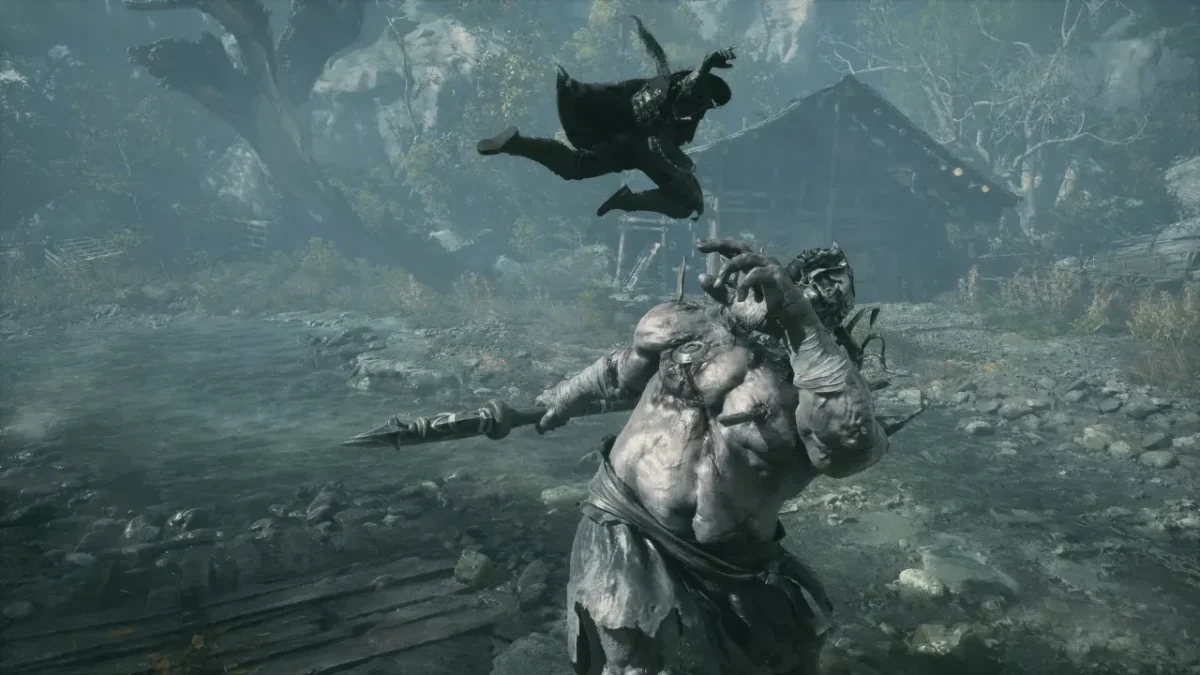
On a GeForce card, install driver 617.42 with a clean installation. Keep the game on an SSD, finish the update, and let the first-launch shader compilation run to the end with the game in the foreground. When the stutter hits mid-fight or between areas, disable ray tracing and path tracing first.
Most Phantom Blade Zero problems on PC come back to the driver, the install, the first-launch shader job or ray tracing. Check them in that order before you reinstall anything.
NVIDIA driver
The developer recommends driver 617.42 for the game. It says 621.01, the driver NVIDIA released for launch, runs unstable on some setups. If you have 621.01 or anything newer installed, put 617.42 back and tick Clean installation. The NVIDIA app lists recent versions at the bottom of its driver page, and older releases are on NVIDIA’s driver archive. Stay on 617.42 until S-GAME clears a newer driver.
The advice for Radeon and Arc cards is the latest driver. Radeon RX 9000 owners with broken hair or white sky squares should read the Radeon artifacts fix, since that bug survives a driver update.
Install and update
The game has to sit on an SSD. A hard drive is not supported, and S-GAME also advises against the Windows drive when you have another SSD. The install takes about 145 GB, and the drive should have at least 160 GB free because updates need working space.
Players who preloaded must install the launch-day patch, roughly 5 GB, before they can play. It targets performance in both ray-traced modes and patches some bugs, and anyone downloading now already has it. A download bar that looks frozen is usually the client verifying or unpacking files, so leave it alone.
To verify the files in Steam, go to your Library, pick the game with a right-click and choose Properties. Under Installed Files, pick Verify integrity of game files, then relaunch. Epic has a verify option in its launcher too. One pass is enough.
First-launch shaders
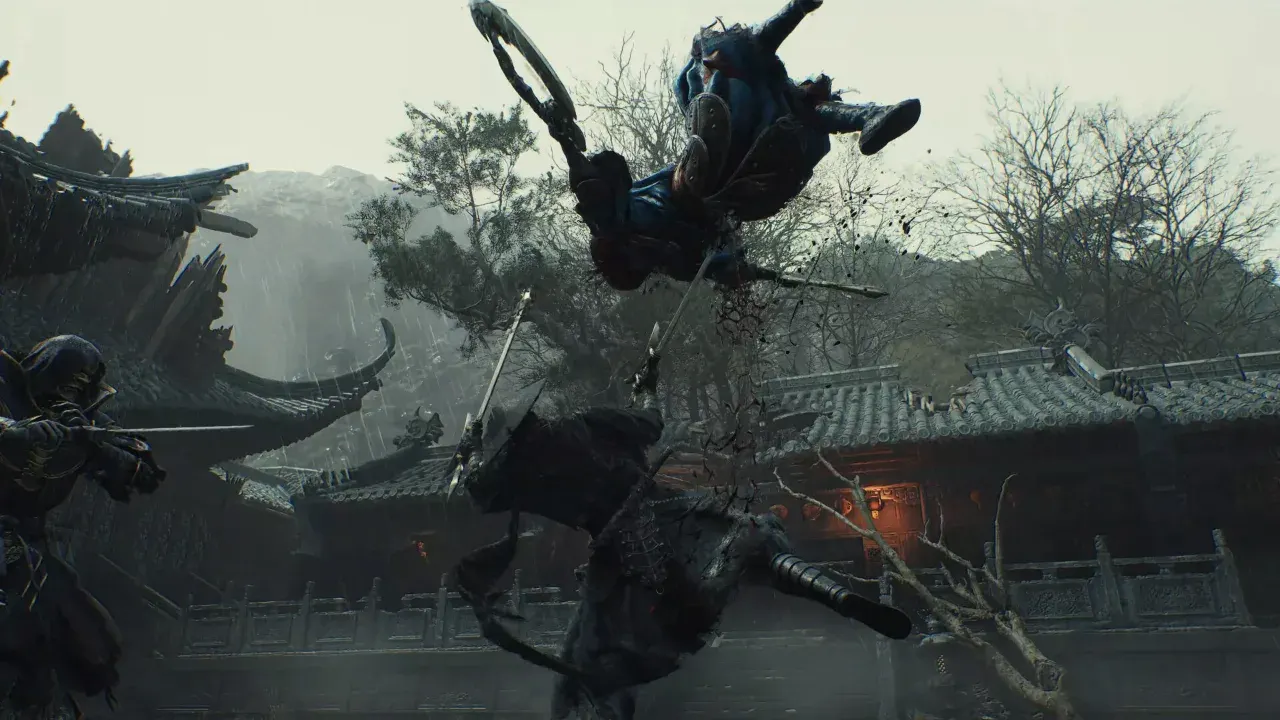
The first launch compiles shaders, and the game sits on a progress screen while every CPU thread runs flat out. The percentage can freeze for minutes. A Core i7-14700K finished in about 8 minutes and a Core i7-9700K needed close to an hour, so the processor decides how long you wait.
Do not close it. Keep the window in front, because S-GAME says moving the game to the background lowers its CPU priority and stretches the job. Shut browsers, downloads and streaming apps before you start.
Crashes, black screens and freezes
Work through these in order.
- Check the hardware. The game needs an SSD, 16 GB of RAM and a DirectX 12 GPU. The minimum cards are a GTX 1660 6 GB and an RX 5500 XT 8 GB.
- Reboot. Reboot the computer, relaunch the client and close every program you do not need.
- Update. Install pending Windows updates and the right graphics driver from the section above.
- Remove add-ons. Switch off third-party tools and overlays such as recording or monitoring software, one at a time, and test after each.
If the crash always happens at the same place, write down where. S-GAME’s support form asks for the location, your PC specs, the driver version and the game version, and a dxdiag report helps.
Stutter and low FPS
Switch off ray tracing and path tracing before anything else. They are the heaviest options in the game and add hitching as you move through areas. You have to change both on the title screen.
After that, apply the recommended preset under System, then Graphics. Disable High-Quality Hair next and lower shadows and effects if you still need frames. The best PC settings list has every value.
If the picture smears when you turn the camera with frame generation on, switch Motion Blur off.
HDR not available
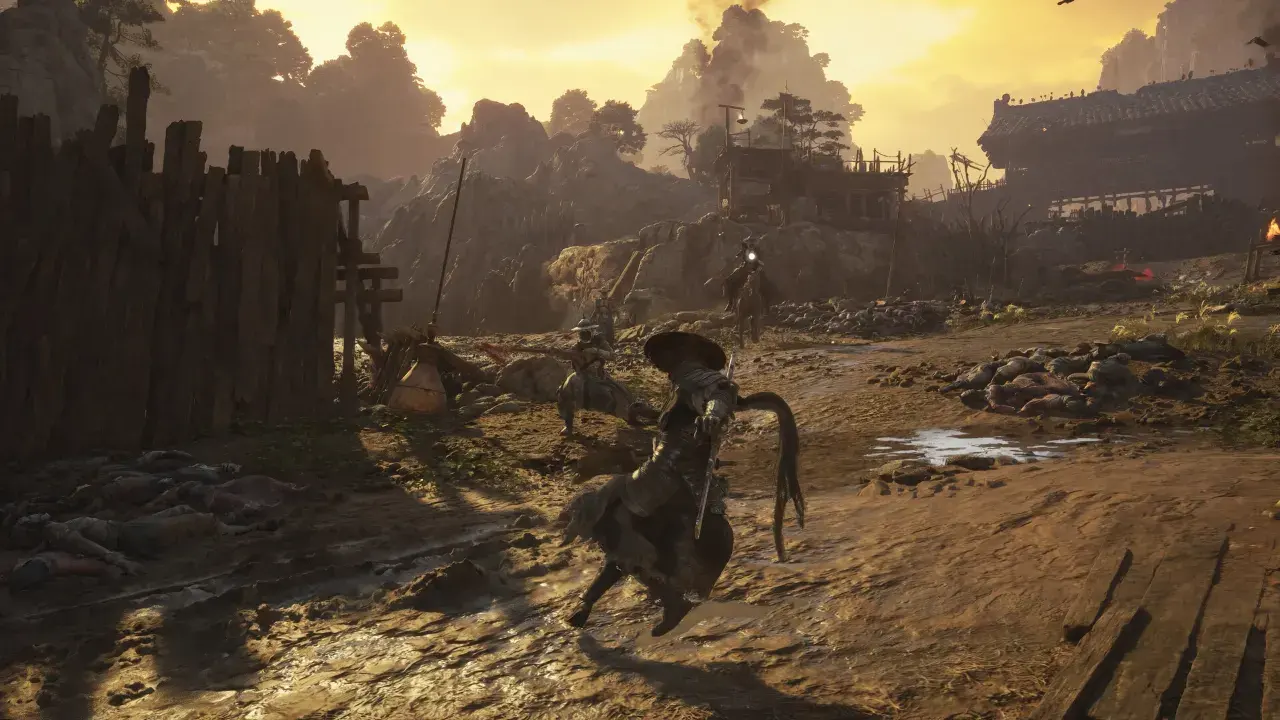
Make sure your display handles HDR and that Windows has it on for that screen under Settings, System, Display. On a Radeon card, if the option is still grayed out in the game, open the Adrenalin software, find 10-bit Pixel Format, disable it and relaunch the game. That option is separate from the monitor’s color depth setting.
DualSense and audio
Plug the DualSense in with a data-capable USB cable, since Bluetooth limits some of the advanced haptics. If haptic options are missing, check that the controller’s sound device has not been disabled in Windows. Certain effects rely on that device. You can still hear the game through headphones by making them the default output.
Sound coming from the wrong device is fixed under System, then Audio, then Playback Device.
Corrupted save on Steam
Saves live inside the game folder, so back them up before you uninstall. To restore a damaged save, follow these steps.
- Open the folder. In Steam, right-click the game, choose Manage, then Browse Local Files. Go to ProjectPBZ, Saved, SaveGames, Steam, then your Steam ID folder.
- Delete the bad file. Remove PBZSaveGame.sav from that folder.
- Pick a backup. Open the 1RealTime folder inside it and choose a .sav backup from before the corruption started.
- Copy and rename. Copy that backup one folder up and rename it PBZSaveGame.sav.
- Load and save. Start the game, pick Load Game, then save at a bell. Close the game and let Steam finish uploading to Steam Cloud before you play again.
Once the game runs properly, the tips for beginners are the next stop.
Did this guide help?
Something wrong or out of date? Tell us
Guide by
George
George grew up on Dark Souls and Call of Duty, and he still has strong opinions about both. He also plays Arma, where he walks a very long way to get shot by someone he never saw. He says it’s part of the experience.
Up next in Phantom Blade Zero
Popular right now
-
GuidesMidgame
-
GuidesEarly game
-
GuidesMidgame
-
GuidesMidgame

Squad chat
Be the first